In this story
Wi-Fi slow in one room is generally caused by walls, floors, and certain materials imposing dB losses that weaken the signal. Knowing how building materials and frequency bands impact signal strength can help you make the right fixes at the right cost.
Walls, Floors, and Materials
If Wi-Fi is slow in just one bedroom or office, the first cause to check is the room’s distance, and how much solid material lies between the router and the dead spot. This is because structural components such as walls and floors attenuate Wi-Fi signals.
Measurements published by the U.S. Federal Communications Commission (FCC) show how much solid surfaces weaken a signal. It measured a median loss of about 17 decibels through building walls, with floors and concrete ceilings costing roughly 15–25 dB more.
Those figures are specific to the 2.4 GHz band, and attenuation losses are also seen at higher bands, but with different behavior.
Band Choice and Range
Wi-Fi operates on the 2.4 GHz, 5 GHz, and 6 GHz bands, and those are not identical in range, channel availability, or ease of attenuation.
The 2.4 GHz band is older and most widely used. While it travels farther, it is usually slower and the most congested due to shared use with many older devices and neighboring routers. The 2.4 GHz band includes only 3 non-overlapping channels, so interference is common.
The neighboring 5 GHz band has a shorter range but higher speed, and it offers many more non-overlapping channels, making it less prone to interference and more suited for bandwidth-intensive applications.
The recently introduced 6 GHz band allows for channel widths up to 160 MHz in compatible clients and networks, providing even faster speeds and a lower interference rate. However, it has the shortest range, and its real-world reach is similar to that of the 5 GHz band.
Congestion vs Coverage
Coverage and congestion are two sides of the same issue, and knowing which one causes your problem helps in making the optimal fix.
If the fault is coverage, either the router is too far or there are too many solid obstructions between the router and the problem room. This is most common with 5 GHz or 6 GHz bands and in newer, highly efficient buildings. The fix is often upgrading to a mesh network, or adding a wired access point.
If the fault is congestion, narrow channels and interference are more likely at 2.4 GHz, especially in apartment buildings with many neighbouring networks. This is fixable using a different, less-congested channel, usually in the 5 GHz or 6 GHz bands.
Free Fixes Before Buying Equipment
Many one-room Wi-Fi problems can be fixed without buying anything: the key is the right band and the right router position.
Before making a purchase, try the following moves:
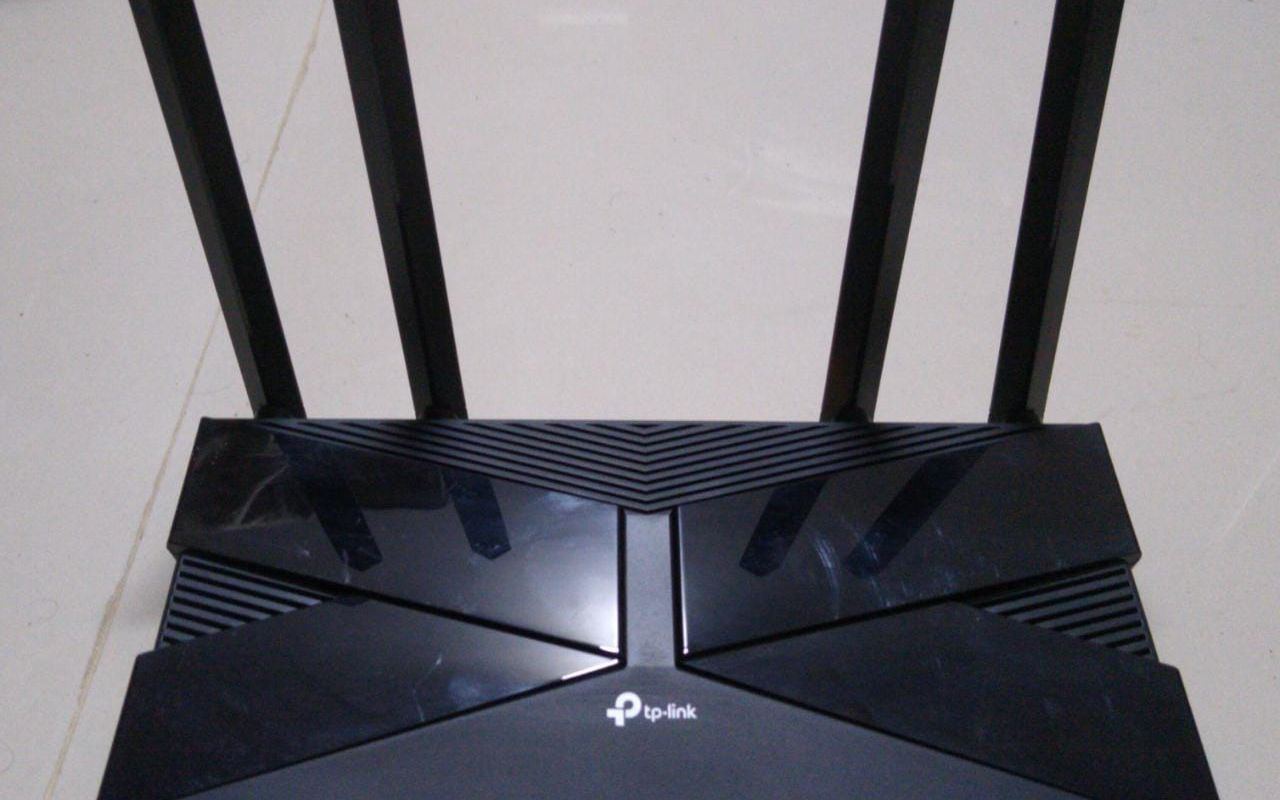
Position your Wi-Fi router as high and as central as possible. This minimizes the distance and number of obstructions between the router and the problem room.
Use the 2.4 GHz band, which is less affected by solid barriers than the 5 or 6 GHz bands. Keep in mind that this can introduce congestion in the 2.4 GHz band.
To minimize interference from neighbors, use a WiFi tool to view the channels in use on each available frequency and choose the least crowded one.
Avoid placing devices that create electromagnetic interference, such as microwaves or cordless phones, near your router.
Finally, limit the use of large metal objects or mirrors in the room, as these can potentially reflect or absorb the Wi-Fi signal.
When Hardware Is the Cheapest Real Fix
If these fixes don't help, a hardware upgrade is necessary. However, it's important to avoid overspending on equipment before identifying the problem. Has your mapping shown that the entire house is affected by a weak signal? Then a mesh network might be the solution.
Is the issue confined to one or two rooms? Then a standalone access point or a Wi-Fi range extender may be more cost-effective.
Wireless access points are plugged directly into your router and expand your network's range. They can be used singly or in conjunction with a mesh system.
Powerline adapters use your home's electrical wiring to extend your network, providing a stable and fast connection. They work best when both adapters are on the same electrical circuit, and results vary with the age of the wiring.
Wi-Fi extenders or repeaters receive the existing Wi-Fi signal, amplify it, and transmit it, effectively extending the range of your network. However, this amplification can also cause some degradation in signal quality.
Finally, consider an Ethernet cable for the most demanding devices, such as gaming consoles or a TV in the problem room. A cable is the fastest and most reliable connection and is not affected by wireless interference.
Conclusion on Bedrooms and Offices with Slow Wi-Fi
If Wi-Fi slows down in just one room, the most likely causes are attenuation through walls, floors, and solid materials. Knowing the differences between 2.4, 5, and 6 GHz bands, and whether the problem is coverage or congestion, helps in applying the fix. Without purchasing, try a more central router position, a different band, or mitigating interference. If hardware is necessary, assess the extent of the problem before buying a mesh network, access point, range extender or a cable.